Category: macos

  • On servers timezone and tmux

    A while ago I was fighting with a timezone set on a server because of the daylight saving time kicked in: during the ghost hour I had troubles with finding automated jobs. Moreover, the server was located overseas and depending on when I was checking the remote date and time, I could get a different time delta.

    Then, the quasi-philosophical question about “which timezone should be set for a remote server: my timezone or local timezone to the server?” has began rolling in my mind.

    After some research, I found a piece of technical advice from Yeller. In short, their advice can be summarized with:

    Use UTC
    Use UTC. Use UTC. Use UTC. Use UTC. Use UTC. Use UTC. Use UTC. Use UTC. Use UTC. Use UTC. Use UTC. Use UTC. Use UTC. Use UTC.

    (no, really check the linked post: it is full of good and agreeable technical points to use UTC).

    After setting the default timezone for all my servers to UTC, there are some tweaks to live happily ever after with UTC.

    First, add your timezone and export it into the TZ variable:

    echo 'export TZ=/usr/share/zoneinfo/Europe/Rome' >> ~/.zshrc

    This brings a notable advantages:

    • without TZ set:

    % date
    Mon Mar 25 20:56:43 2019
    journalctl -f
    [...]
    Mar 25 20:57:51 golf systemd-logind[1154]: Session 980 logged out. Waiting for processes to exit.

    • with TZ set you get every message* localized in the selected timezone:

    % date
    Mon Mar 25 21:57:53 CET 2019
    journalctl -f
    [...]
    Mar 25 21:57:51 golf systemd-logind[1154]: Session 980 logged out. Waiting for processes to exit.

    * = every message from a sane and decently written program that knows about timezones and honors the TZ variable.

    Secondly, I usually have everything running in a tmux session with the time in the tab bar. After changing the server timezone to UTC, tmux was outputting the time in UTC: I wanted to show my local time as well. In order to show localized time, you have to change some parameters:

    • Output the time and the timezone in the tab bar:

    In ~/.tmux.conf:
    set -g status-right '%a %b %d %H:%M %Z'

    • Make sure to send your TZ variable whenever you are using SSH:

    In ~/.ssh/config:
    Host *
    [...]
    SendEnv TZ

    • Make sure that your SSH server automatically accepts the TZ variable:

    In /etc/ssh/sshd_config
    AcceptEnv [...] TZ

    Restart your sshd service and try to login in the remote server. Your tmux tab bar should show the updated time in your localized timezone, while still using UTC as the global timezone for the server.


  • A comparison between browser features on desktop and mobile iOS

    I am a long time user of Firefox and Chrome on desktops (GNU/Linux and macOS), while I rely on Chrome on my iOS devices.
    Recently there has been some valid critics of Chrome and its privacy choices and I began to look around for an alternative of Chrome.

    I identified a list of features that I consider a must-have in the browser I use and I decided to give a try to other browsers as well.

    To present the results, I designed this table:

    [table id=1 /]

    [1] On Opera iOS, even if “Block ads” was enabled, I could still see AdSense ads.
    [2] Obviously, Safari is not released for GNU/Linux, hence this limitation.
    [3] Via uBlock Origin extension (desktop only).
    [4] Via Firefox Focus WebView extension (iOS only).
    [5] Via Reader View extension (desktop only).

    Considering all my needs expressed in the table, I will be continuing using Firefox on desktops, and I will switch my mobile browser of choice to Firefox.

    What are your experiences with browsers on desktop and mobiles? What browser do you use?

  • Automatically add SSH keys to SSH agent with GNOME and macOS

    Automatically add SSH keys to SSH agent with GNOME and macOS

    I am using passwordless login via SSH on every box that I administer.
    Of course, my private SSH key is protected with a password that must be provided when accessing the key.
    Modern operating systems incorporate the usage of ssh-agent to “link” the user account to the SSH key(s), in order to unlock the SSH key as soon as the user is logged in. In this way, they avoid nagging the user asking for the SSH key password every time the key needs to be used.
    In my case, I am running GNU/Linux with GNOME and macOS:

    • GNOME, via its Keyring, supports the automatic unlocking of SSH keys upon user login. Starting from GNOME 3.28, ed25519 keys are supported as well as RSA keys (I do not other use any other type of SSH keys). To add your keys, just invoke ssh-add and supply your key path:
    ssh-add ~/.ssh/[your-private-key]
    

    you will be asked for your SSH key password. It will be put in the GNOME Keyring (remember it if you update your SSH password!).

    • macOS supports associating your SSH key password into the Keychain. You can add your key(s) with:
    ssh-add -K ~/.ssh/[your-private-key]
    

    Starting from Sierra, though, you need to change your ~/.ssh/config to persist the key between reboots and add:

    Host *
      UseKeychain yes
      AddKeysToAgent yes
      IdentityFile ~/.ssh/[your-private-key-rsa]
      IdentityFile ~/.ssh/[your-private-key-ed25519]
    

    Now, if you share the same ~/.ssh/config file between GNU/Linux and macOS you would encounter an error: how ssh on Linux is supposed to know about UseKeychain option (which is compiled only in macOS’ ssh)?
    A special instruction, IgnoreUnkown, comes to the rescue:

    IgnoreUnknown UseKeychain
    UseKeychain yes
    

    Eventually, my ~/.ssh/config looks like:

    Host *
      IgnoreUnknown UseKeychain
      UseKeychain yes
      AddKeysToAgent yes
      IdentityFile ~/.ssh/id_rsa
      IdentityFile ~/.ssh/id_ed25519
      Compression yes
      ControlMaster auto
    [...]
    
  • Accessing remote libvirt on a non-standard SSH port via virt-manager

    Scenario: you are using a remote host as a virtualization host with libvirt and you want to manage it via ”Virtual machine manager” (virt-manager) over SSH.

    But SSH is listening on a non-standard port, and virt-manager does not offer you to connect to a remote libvirt instance on a non-standard port.

    Fear not, the option to connect to your libvirt command is just this command away:

    virt-manager -c 'qemu+ssh://root@:/system?socket=/var/run/libvirt/libvirt-sock'
    

    (make sure to have passwordless login to the remote host already setup, for example with SSH keys).

    Plus note: you can install virt-manager even on macOS (obviously only remote support) with homebrew-virt-manager

  • OSX: come fare un reset di Launchpad

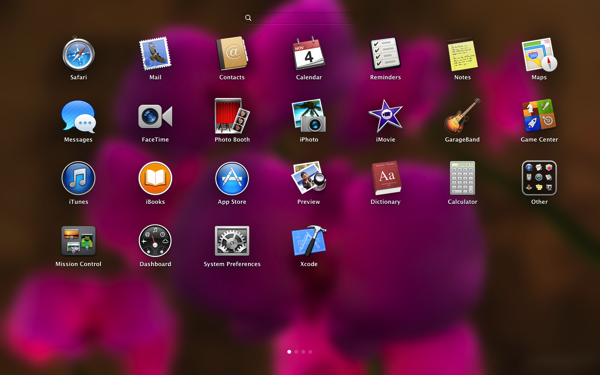
    Dopo l’installazione di Mavericks, ho deciso di fare un reset delle applicazioni presenti in Launchpad, la schermata iOS-like di OSX per il lancio di applicazioni (introdotta in Lion).

    Launchpad

    Per fare un reset di Launchpad è sufficiente cancellare il database SQLite che contiene le descrizioni di tutte le applicazioni (niente paura: il database viene rigenerato ogni volta che si riapre Launchpad):

    rm ~/Library/Application\ Support/Dock/*.db
    killall Dock
    

    Ora riaprite Launchpad e le applicazioni verranno disposte secondo il default.

  • iOS Bootcamp al TAG di Bergamo

    Ieri sera ho partecipato all’incontro “iOS Bootcamp” organizzato dalla community di #pragma mark presso il TAG di Bergamo.
    Non era la prima volta che frequentavo il TAG: un luogo dove incontrare giovani startupper e persone interessanti con cui discutere di tecnologia ed innovazione in un ambiente stimolante e creativo.

    Era la prima volta, però, che partecipavo ad un talk tecnico presso il TAG. L’organizzazione è stata impeccabile: è stato usato EventBrite per gestire gli inviti ed i tickets di ingresso [il talk non aveva alcun costo], la sala era spaziosa, i tempi rispettati, e la dotazione tecnologica a disposizione ha permesso di seguire il talk in completa autonomia. Essendo un talk prettamente tecnico, la sala si è rapidamente trasformata in un covo di nerds, ma rispetto ad altre conferenze non ci sono stati incidenti.

    Incontravo la community di pragma mark e i suoi quattro fondatori: il talk che hanno tenuto ha spaziato lungo tutto l’ecosistema Apple per lo sviluppo di applicazioni iOS e OSX, passando dai provisioning profiles [più croce che delizia per i developers] fino ad arrivare al message-passing tipico di Objective-C [derivante da SmallTalk].
    Il talk è stato presentato in maniera logica, chiara e anche divertente: il trivia che spiega come è nato il nome della community è stato un piacevole break.
    I presentatori sono stati molto disponibili: nella parte di Q&A ho posto alcune domande su ARC e manual memory management e le risposte sono state molto esaustive e chiare.

    L’impressione che ho avuto, quindi, è molto positiva: sicuramente parteciperò ai prossimi talk organizzati da #pragma mark presso il TAG, e ho già sottoscritto il feed RSS dei rispettivi blog.

  • sshuttle: creiamo una VPN (via transparent proxy) con SSH

    In passato vi ho spiegato come creare un tunnel SSH per poter “tunnelizzare” il traffico Internet usando da tramite un server che esponeva il demone sshd. La scomodità di questa soluzione risiede nell’ultimo passo: dobbiamo impostare un tunnel SOCKS per ogni programma di cui vogliamo tunnelizzare il traffico. Ok, questo può non essere una scomodità vera e propria, tuttavia: per esempio, vogliamo tunnelizzare solo il traffico del browser [pensiamo di trovarci in una rete pubblica], mentre il traffico SSH [già cifrato] non ha bisogno di essere tunnelizzato.

    Oggi facciamo un passo oltre: vogliamo sfruttare la connessione SSH che abbiamo per tunnelizzare  tutto il traffico attraverso SSH. Questo è equivalente a creare una VPN con il server remoto, ma l’unica differenza importante è che non si creano interfacce di rete aggiuntive!

    Di conseguenza, l’host locale (che chiamiamo client) instaurerà una connessione SSH verso il server che si assumerà la responsabilità di instaurare la connessione verso gli altri host e di fare da “passacarte” verso il client. La configurazione è molto utile nel caso in cui il client si trovi ad utilizzare una rete pubblica non sicura (pensiamo ad esempio a Starbucks) ma allo stesso tempo voglia che tutto il traffico sia cifrato per evitare problemi di sniffing.

    Il software che ci permette di costruire la VPN (vi ricordo che non è a tutti gli effetti una VPN, anche se ne si hanno tutti i benefici) è sshuttle, disponibile per Linux e OSX.

    Una volta installato solo sul client (lo trovate nei repo di Ubuntu e in homebrew), vi consiglio di configurarlo per fare il forward di tutto il traffico (comprese le richieste DNS) nel seguente modo:

    ./sshuttle --dns -vvr username@sshserver 0/0

    [Nota: 0/0 è uno shortcut per 0.0.0.0 – se volete modificarlo per fare selective routing verso il tunnel di una particolare subnet, sapete cosa dovete modificare ;)]

    Per i più curiosi, ecco una piccola spiegazione di cosa c’è under the hood di sshuttle.

  • zsh: perché non utilizzo bash

    Su tutte le macchine Linux e OSX che amministro non uso come shell di default la bash; uso invece zsh, perché:

    • zsh si offre di completare anche le opzioni e i parametri dei programmi più usati;
    • zsh fa spelling correction dei comandi digitati, chiedendo interattivamente se volete correggere il comando;
    • zsh offre una customizzazione più spinta della bash (vedremo tra poco il mio prompt);
    • zsh condivide la history tra più sessioni attive contemporaneamente;
    • zsh è già installata, di default, su OSX (ed è nei repo di Ubuntu, percui basta un aptitude install zsh).

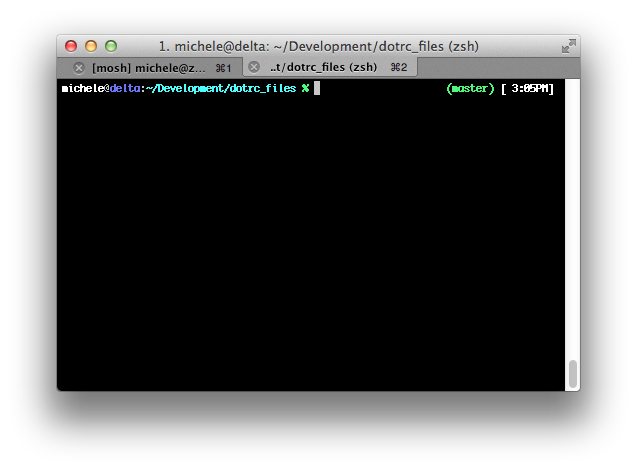
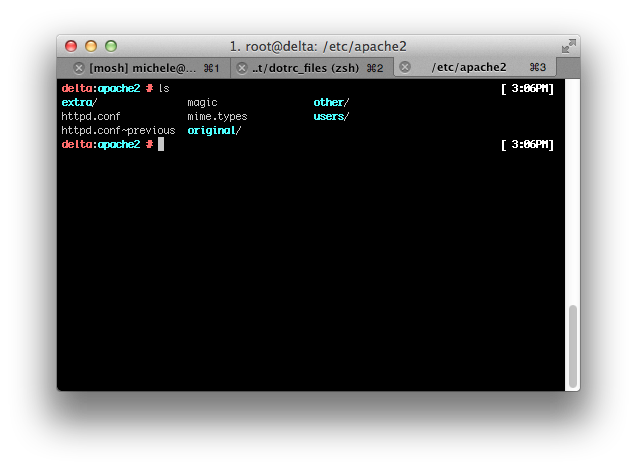
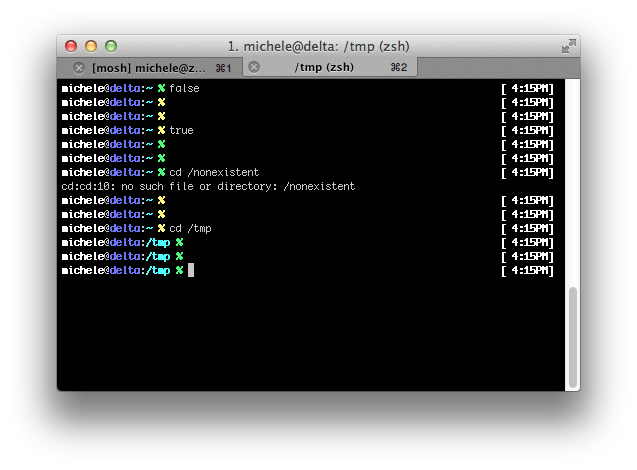
    Se questi vantaggi non dovrebbero bastare, ecco il mio prompt:

    Ho scritto un tema ad-hoc, che funziona grazie a oh-my-zsh (un framework di customizzazione per zsh, che consiglio vivamente!). Cos’ha di speciale il mio prompt rispetto ad una semplice bash?

    • Colorazione diversa del prompt se siamo root
    • Colorazione del prompt in base all’esito positivo o negativo dell’ultimo comando utilizzato
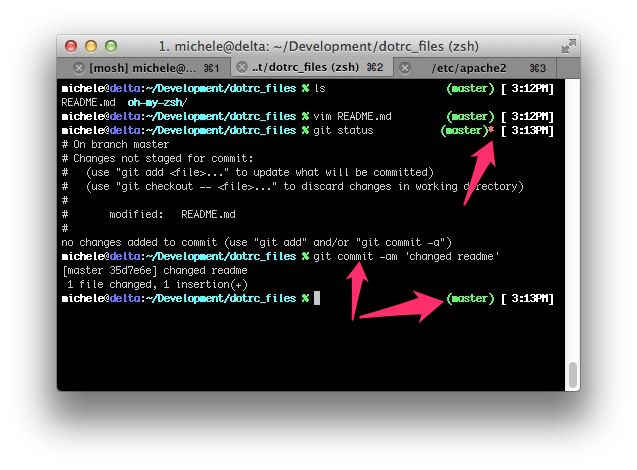
    • Visualizzazione dello stato del repo git della directory attuale: branch + status (modifiche unstaged?)

    Ho caricato su github i due temi che ho creato per oh-my-zsh: michelebologna.zsh-theme è quello mostrato in questi screenshot. Ovviamente, prima dovete installare oh-my-zsh. Feedback benvenuti!

  • OSX: come aggiungere un separatore tra gli elementi della Dock

    Ultimamente ho fatto ordine tra gli elementi che compongono la mia Dock (che potete vedere qui accanto).

    Per separare logicamente le applicazioni che compongono la Dock, ho deciso di introdurre alcuni elementi “separatori” (degli spazi vuoti) tra le applicazioni. In questo modo è più facile distinguere tra il gruppo di applicazioni che servono a svolgere un determinato task da un altro.
    Come si aggiunge il separatore?
    Aprite un terminale e digitate:
    defaults write com.apple.dock persistent-apps -array-add '{"tile-type"="spacer-tile";}'; killall Dock
    All’ultima posizione della vostra Dock verrà aggiunto un separatore che potrete spostare come un’applicazione.
    Per rimuovere il separatore è sufficiente trascinarlo fuori dalla Dock, come una normale applicazione.

  • OSX Mountain Lion 10.8: un po’ di customizzazione

    Sulla falsariga di quanto avevo già fatto per MacOSX 10.7, e visto che anche questa volta sono stato un early adopter della nuova versione di MacOSX, ho adattato lo script di customizzazione in modo da adattarsi alle nuove funzionalità di OSX.

    Mi sono ispirato allo script che trovate qui, facendo una selezione di quello che mi sembrava più ragionevole. Ovviamente, dopo aver inserito questi comandi dal terminale, consiglio un riavvio.

    ###
    ### Michele Bologna
    ### OSX 10.8 Customization kit (based on https://github.com/mathiasbynens/dotfiles/blob/master/.osx?os-x-10.8 )
    ###
    
    # General
    
    # Menu bar: disable transparency
    defaults write NSGlobalDomain AppleEnableMenuBarTransparency -bool false
    # Disable opening and closing window animations
    defaults write NSGlobalDomain NSAutomaticWindowAnimationsEnabled -bool false
    # Always shows scrollbars
    defaults write NSGlobalDomain AppleShowScrollBars -string “Always"
    # Automatically quit printer app once the print jobs complete
    defaults write com.apple.print.PrintingPrefs "Quit When Finished" -bool true
    # Disable “natural" (Lion-style) scrolling
    defaults write NSGlobalDomain com.apple.swipescrolldirection -bool false
    # Enable full keyboard access for all controls
    # (e.g. enable Tab in modal dialogs)
    defaults write NSGlobalDomain AppleKeyboardUIMode -int 3
    # Disable auto-correct
    defaults write NSGlobalDomain NSAutomaticSpellingCorrectionEnabled -bool false
    
    # Finder
    
    # “Show Status bar in Finder"
    defaults write com.apple.finder ShowStatusBar -bool true
    defaults write com.apple.finder PathBarRootAtHome -bool TRUE
    # “Expand save panel by default"
    defaults write NSGlobalDomain NSNavPanelExpandedStateForSaveMode -bool true
    # Expand print panel by default
    defaults write NSGlobalDomain PMPrintingExpandedStateForPrint -bool true
    # Finder: disable window animations and Get Info animations
    defaults write com.apple.finder DisableAllAnimations -bool true
    # Show icons for hard drives, servers, and removable media on the desktop
    defaults write com.apple.finder ShowExternalHardDrivesOnDesktop -bool true
    defaults write com.apple.finder ShowHardDrivesOnDesktop -bool true
    defaults write com.apple.finder ShowMountedServersOnDesktop -bool true
    defaults write com.apple.finder ShowRemovableMediaOnDesktop -bool true
    # Finder: show all filename extensions
    defaults write NSGlobalDomain AppleShowAllExtensions -bool true
    defaults write com.apple.finder FXEnableExtensionChangeWarning -bool false
    # Don’t animate opening applications from the Dock
    defaults write com.apple.dock launchanim -bool false
    # “Show the ~/Library folder"
    chflags nohidden ~/Library
    # Stop Preview.app from using iCloud as default location when saving files
    defaults write NSGlobalDomain NSDocumentSaveNewDocumentsToCloud -bool false
    
    # Mission Control
    
    # Speed up Mission Control animations
    defaults write com.apple.dock expose-animation-duration -float 0.1
    
    # Reset Launchpad
    find ~/Library/Application\ Support/Dock -name "*.db" -maxdepth 1 -delete
    
    # Safari
    
    # Enable Safari’s debug menu
    defaults write com.apple.Safari IncludeInternalDebugMenu -bool true
    # Enable the Develop menu and the Web Inspector in Safari
    defaults write com.apple.Safari IncludeDevelopMenu -bool true
    defaults write com.apple.Safari WebKitDeveloperExtrasEnabledPreferenceKey -bool true
    defaults write com.apple.Safari com.apple.Safari.ContentPageGroupIdentifier.WebKit2DeveloperExtrasEnabled -bool true
    # Add a context menu item for showing the Web Inspector in web views
    defaults write NSGlobalDomain WebKitDeveloperExtras -bool true
    
    # iTunes
    
    # Disable the iTunes store link arrows
    defaults write com.apple.iTunes show-store-link-arrows -bool false
    # Disable the Ping sidebar in iTunes
    defaults write com.apple.iTunes disablePingSidebar -bool true
    # Disable all the other Ping stuff in iTunes
    defaults write com.apple.iTunes disablePing -bool true
    # Make ⌘ + F focus the search input in iTunes
    # To use these commands in another language, browse iTunes’s package contents,
    # open `Contents/Resources/your-language.lproj/Localizable.strings`, and look
    # for `kHiddenMenuItemTargetSearch`.
    defaults write com.apple.iTunes NSUserKeyEquivalents -dict-add "Target Search Field" "@F"
    
    # Mail
    
    # Disable send and reply animations in Mail.app
    defaults write com.apple.Mail DisableReplyAnimations -bool true
    defaults write com.apple.Mail DisableSendAnimations -bool true
    
    # Terminal
    
    # Only use UTF-8 in Terminal.app
    defaults write com.apple.terminal StringEncodings -array 4
    
    # Twitter
    
    # Enable the hidden ‘Develop’ menu
    defaults write com.twitter.twitter-mac ShowDevelopMenu -bool true
    # Open links in the background
    defaults write com.twitter.twitter-mac openLinksInBackground -bool true
    # Allow closing the ‘new tweet’ window by pressing `Esc`
    defaults write com.twitter.twitter-mac ESCClosesComposeWindow -bool true
    
    # Reset the open with menu
    /System/Library/Frameworks/CoreServices.framework/Versions/A/Frameworks/LaunchServices.framework/Versions/A/Support/lsregister -kill -r -domain local -domain system -domain user
    
    # Show debug menu (useful for "show every partition") on Disk Utility
    defaults write com.apple.DiskUtility DUDebugMenuEnabled 1
    
    # Reveal IP address, hostname, OS version, etc. when clicking the clock
    # in the login window
    sudo defaults write /Library/Preferences/com.apple.loginwindow AdminHostInfo HostName