Category: software

  • Viaggiatreno Ruby gem: version 1.0.5

    On the background of all my activities, I continued the developing of viaggiatreno, a Ruby gem to parse Italian railway real-time system information of the status of the various trains: location, delay, expected and real arrival time. Yesterday I released the version 1.0.5 of this gem, which improves the overall code quality of this gem (0 rubocops violations!):

    viaggiatreno gem source code is hosted on GitHub.

    Simple usage of this gem has been included in the README.

    Another interesting fact that I dealt while writing continuous integration test (with Travis) in the development of this gem: as it fetches and parses information from Internet URLs, one way of writing RSpec tests is to “mock” the remote web part.

    Using vcr gem, I mocked the response of the remote web server in order to write static test-cases (since the informations on train change over time, subsequent web requests did not fetch the same results).

  • Workaround for OpenVPN PAM authentication broken on Ubuntu 15.10

    After updating to Ubuntu 15.10 a box with an OpenVPN termination I am using to browse when I travel and use insecure networks, my VPN tunnel stops working. I am using, in this particular box, an OpenVPN server that relies on PAM plugin for authentication (and 2-step verification).

    Given the fact that I keep all my configuration files under etckeeper, the problem determination began with some git log under my /etc directory, both on server and client. Obviously, no configuration has changed during the upgrade.

    The problem has to be somewhere. I had a look at the logs:

    12:47:46 ovpn-3-rtr.bgo ovpn-server[982]: x.x.8.234:64484 TLS: Initial packet from [AF_INET]x.x.8.234:64484
    12:47:48 ovpn-3-rtr.bgo ovpn-server[982]: x.x.8.234:64484 PLUGIN_CALL: POST /usr/lib/openvpn/openvpn-plugin-auth-pam.so/PLUGIN_AUTH_USER_PASS_VERIFY status=1 
    00:47:48 ovpn-3-rtr.bgo ovpn-server[982]: x.x.8.234:64484 PLUGIN_CALL: plugin function PLUGIN_AUTH_USER_PASS_VERIFY failed with status 1: /usr/lib/openvpn/openvpn-plugin-auth-pam.so
    12:47:48 ovpn-3-rtr.bgo ovpn-server[982]: x.x.8.234:64484 TLS Auth Error: Auth Username/Password verification failed for peer
    12:47:50 ovpn-3-rtr.bgo ovpn-server[982]: x.x.8.234:64484 SENT CONTROL [UNDEF]: 'AUTH_FAILED' (status=1)
    12:47:50 ovpn-3-rtr.bgo ovpn-server[982]: x.x.8.234:64484 Connection reset, restarting [0]
    12:47:50 ovpn-3-rtr.bgo ovpn-server[982]: x.x.8.234:64484 SIGUSR1[soft,connection-reset] received, client-instance restarting
    

    (obviously I was providing the correct username and password).

    Ok, the problem was occurring with PAM plugin. After some research and trial, I came across Bug #1511524 “OpenVPN PAM authentication broken on 15.10 Server” : Bugs : openvpn package : Ubuntu: that is caused by a bug in Ubuntu package of OpenVPN (and specifically in OpenVPN systemd unit file).

    As described in the bug, you have three ways to restore a normal situation. Either:

    • stop the daemon and launch OpenVPN daemon
    • modify /lib/systemd/system/openvpn@.service and add CAP_AUDIT_WRITE to CapabilityBoundingSet property
    • or you can just wait while they ship a package with a correct systemd unit file.

    Don’t forget to systemctl restart openvpn to apply changes and use your VPN:

    13:03:49 ovpn-3-rtr.bgo ovpn-server[5186]: x.x.10.176:61423 PLUGIN_CALL: POST /usr/lib/openvpn/openvpn-plugin-auth-pam.so/PLUGIN_AUTH_USER_PASS_VERIFY status=0 
    13:03:49 ovpn-3-rtr.bgo ovpn-server[5186]: x.x.10.176:61423 TLS: Username/Password authentication succeeded for username 'x'
    
  • Getting started with cloud-init and CoreOS

    Lately I’ve been experimenting with CoreOS, a Linux distribution that enforces containerization (I made some experiments with Docker and I’d say that this area is fun!). CoreOS layer of containerization was based Docker, but now that they moved to Rocket. Not only Rocket, though: CoreOS brings some curious innovations to lightweight Linux distributions like clusterization with fleet and service discovery with etcd.

    Since I had to do some tweaks to run CoreOS in a virtual machine (VMware Fusion on OSX is the Type 2 hypervisor I used), I decided to write this post to better illustrate how should you customize CoreOS for the first run.

    First of all, download CoreOS! After importing it in VMware, the tricky part comes in. CoreOS is heavily focused on automation, so you have either two choices to login into your newly created CoreOS machine:

    • boot CoreOS kernel with coreos.autologin parameter active (debug)
    • prepare a cloud-init package that contains your customization. In this case, your ssh pubkey fingerprint. (preferred)

    Let’s see both ways.

    Boot CoreOS with coreos.autologin

    When you see the GRUB menu, edit the current entry and add coreos.autologin
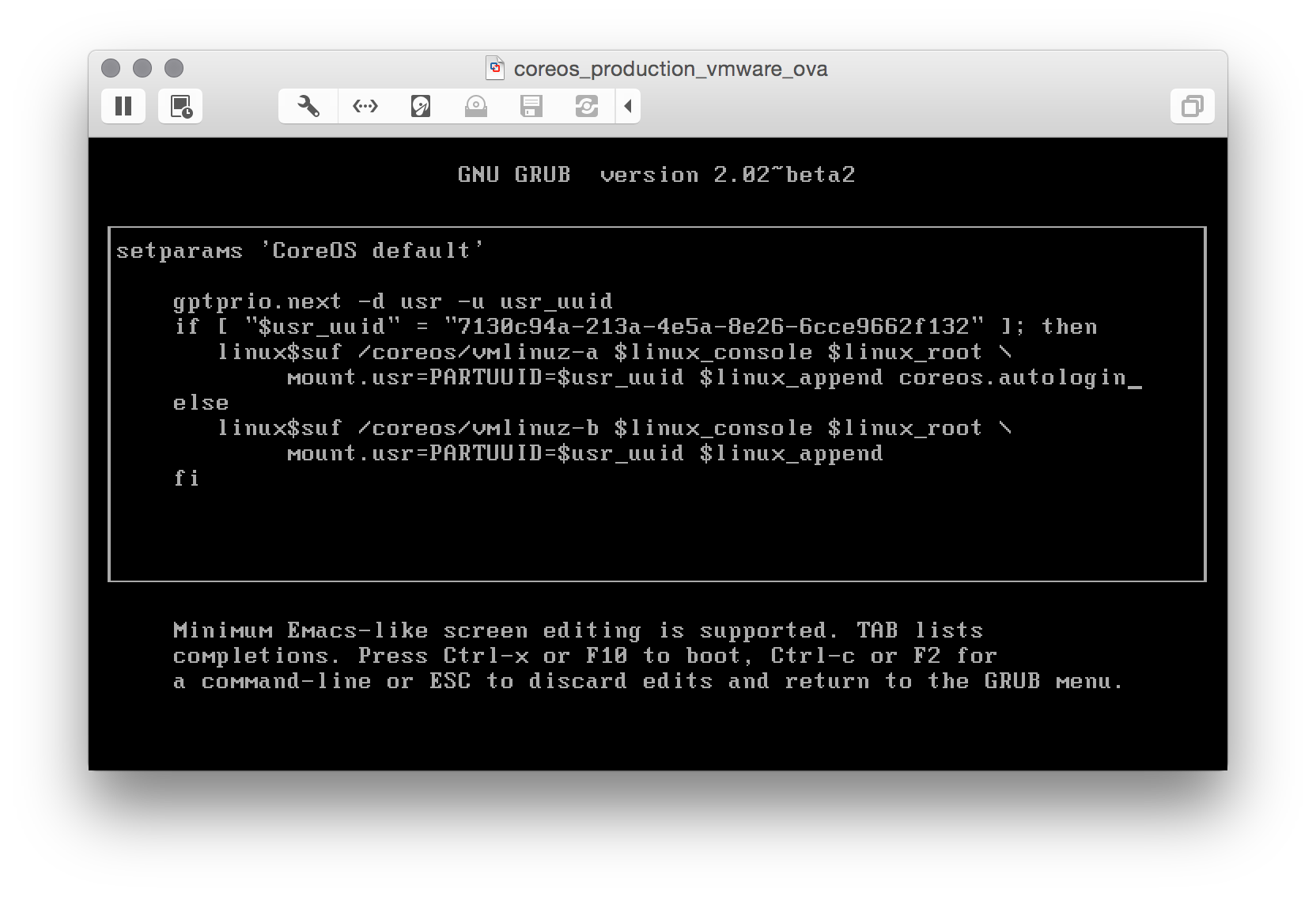
    coreos.autologin

    and you are good to go.

    Note: that with this method only interactive local logins are allowed.

    Prepare a cloud-init package

    This one seems difficult, but it’s not! First of all: cloud-init is a set of scripts that customize a Linux distribution during boot: you can add users, groups, packages and execute commands before the Linux box comes up. CoreOS ships with cloud-init by default, so we only have to:

    1. Write a simple config file (cloud-config)
    2. Package the config into a config-drive (basically, an .iso file)
    3. Mount that iso as a drive for our virtual machine and reboot CoreOS to make your customizations effective

    Write a simple config file

    In our config we will:

    1. Add our ssh pubkey (be sure to have one, or generate it right now)
    2. Set the hostname (who wants a generic hostname anyway?)

    The cloud-config is straightforward: a YAML file where only the first line is equal for everyone:

    # cloud-config 
    ssh_authorized_keys: 
        - "ssh-rsa ... michele@fortknox" 
    hostname: "coreos-test"
    

    Remember to customize it with your pubkey fingerprint and the hostname you want and save it as user_data.

    Package cloud-config into a config-drive

    Now that we have a cloud-config file, we have to package it as a config-drive and make it available as a drive for CoreOS. Since I needed to repeat this process a couple of times, I decided to automate it and I wrote a simple script: configdrive_creator. Be sure to read the instruction: you prepare the config, put it in the same directory of the script, launch the script and the iso is created.

    Mount the iso file as a drive for CoreOS

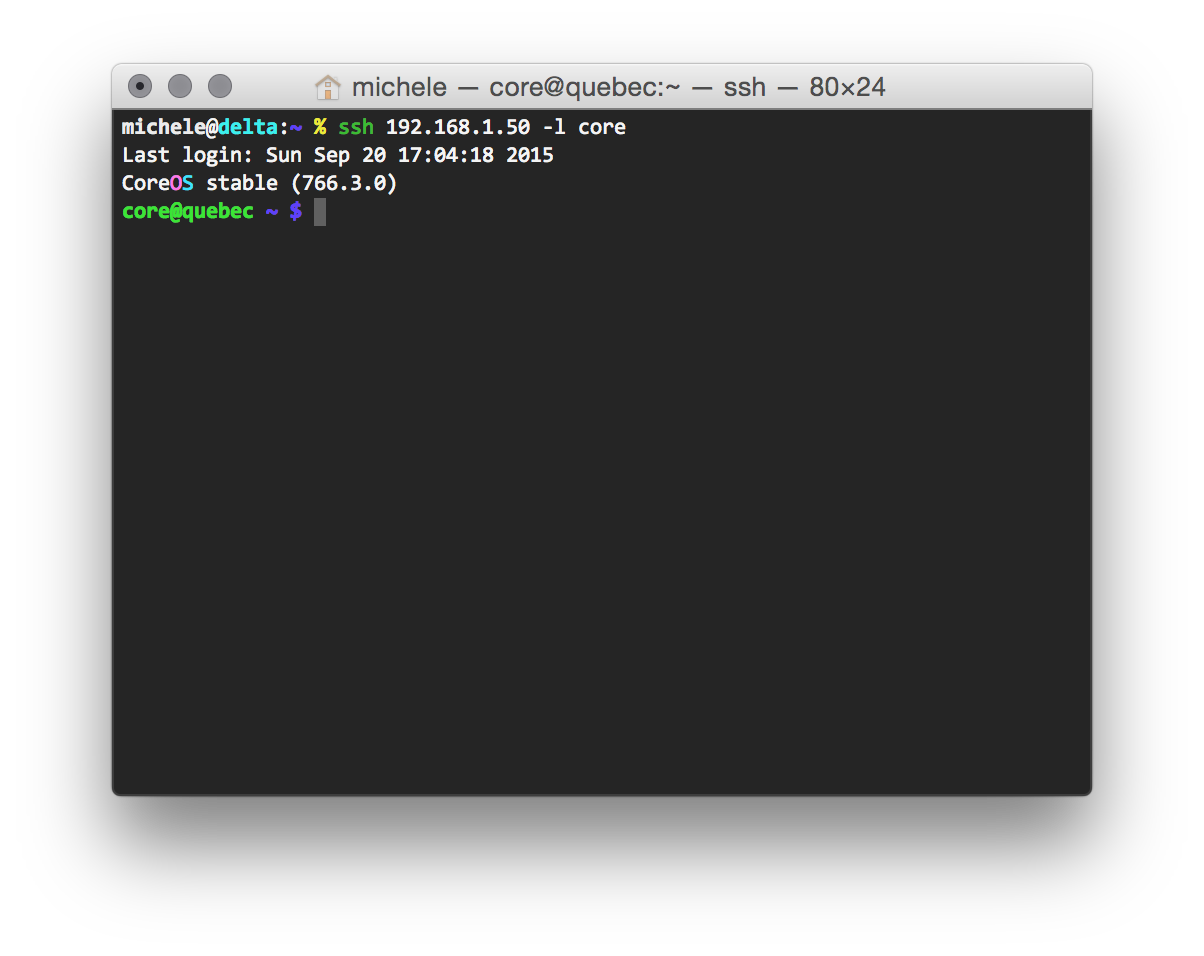
    I am sure you are aware to do it on your own! After rebooting your CoreOS VM, you can finally ssh into it:

    coreos_ssh

    Happy hacking!

  • Convert Java to EXE – Why, When, When Not and How

    Today I come across this great article on the various possibilities we have, as developers, to package a Java application in an executable format for all Windows users out there. I have always used JSmooth with success, but it is nice to discover there are more alternatives (and some of them are OSS too!).

  • Come usare Google Maps in modalità offline

    Ultimamente mi è capitato di utilizzare Google Maps (mobile) all’estero, dove non avevo a disposizione la connessione dati; esistono applicazioni che si appoggiano a OpenStreetMap e scaricano la mappa intera del Paese in cui siete (come ad esempio Galileo), ma per usare Google Maps in offline c’è un piccolo accorgimento che potete usare.

    Visualizzate la mappa che volete salvare. Scrivete quindi, nella barra di ricerca, “OK Maps“. L’applicativo scaricherà l’area visibile e la renderà visualizzabile anche in modalità offline, permettendovi anche di fare zoom-in nell’area interessata (a differenza di quello che potreste fare con uno screenshot).

    Ricordatevi le parole magiche e di salvare la mappa prima, magari con una connessione Wi-Fi.

  • Feedly è un degno sostituto per Google Reader

    Sono passati diversi anni dalla nascita di Google Reader (2005), il più famoso ed utilizzato feed reader di RSS/Atom; anzi, tutt’oggi viene utilizzato come piattaforma di sincronizzazione per i reader che funzionano su più dispositivi (personal favorite: Reeder su OSX e iOS).

    Nel frattempo, altri servizi simili a Reader ma più user-friendly (ed adatti anche ai meno nerd) si sono diffusi: uno tra tutti è Twitter. A mio avviso, Twitter non è un sostituto di un RSS/Atom.

    Ma c’è di più: Google ha deciso di terminare Reader dal 1 luglio 2013 (la mia ipotesi: privacy issues), per cui viene a mancare un servizio fondamentale, sia per la lettura dei feed che per la sincronizzazione.

    Se usate Google Reader la prima cosa da fare è assolutamente esportare la lista delle subscriptions OPML tramite Takeout (Settings di Reader -> Export).

    La ricerca di un servizio alternativo è il secondo passo. Nell’ultimo mese ho provato alcuni servizi simili a Google Reader. La scelta è caduta su Feedly (in particolare sulla versione Cloud). Il servizio è gratuito e a mio avviso è il degno sostituto di Google Reader, sia per quanto riguarda l’interfaccia che le funzionalità offerte.

  • Installazione e configurazione di Logwatch su Ubuntu

    Nei server Linux che amministro ho recentemente installato un programma di monitoring dei logs: logwatch.
    Una questione importante ma abbastanza noiosa e per cui non si ha mai molto tempo è – appunto – quella dell’analisi dei log, una sorta di “diario” dell’attività svolta dal sistema.
    Spesso si ricerca nei logs solo quando insorge un problema: la proattività di logwatch, invece, ci permette di avere una sintesi di ciò che è successo e che merita la nostra attenzione direttamente via email.

    Assicuratevi di avere un MTA installato e configurato a dovere [consiglio: postfix o qmail].
    Una volta installato, logwatch invia una mail a root@localhost ogni giorno.
    Modifichiamo quindi l’indirizzo a cui root farà il forward di tutta la posta:

    % cat /etc/aliases
    postmaster: root
    root: michele@bologna.com

    Modifichiamo la schedulazione dell’esecuzione di logwatch da giornaliero a mensile [da cron.daily a cron.weekly]:

    mv /etc/cron.daily/*logwatch /etc/cron.weekly

    Ed infine specifichiamo a logwatch di analizzare i log relativi agli ultimi 7 giorni e il formato da usare (HTML):

    cp /usr/share/logwatch/default.conf /etc/logwatch/conf/logwatch.conf

    Nel file di conf cambiate:

    • Format = html
    • Range = between -7 days and -1 days

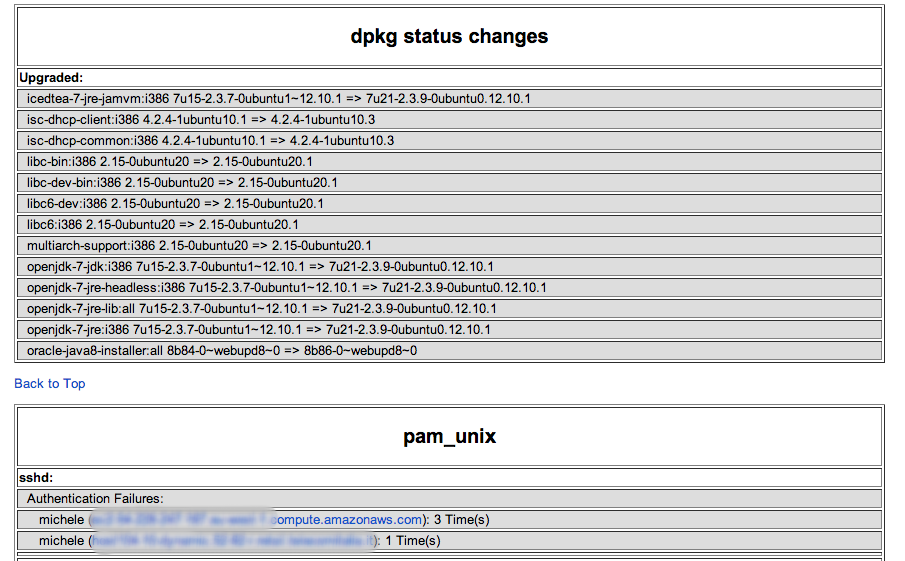
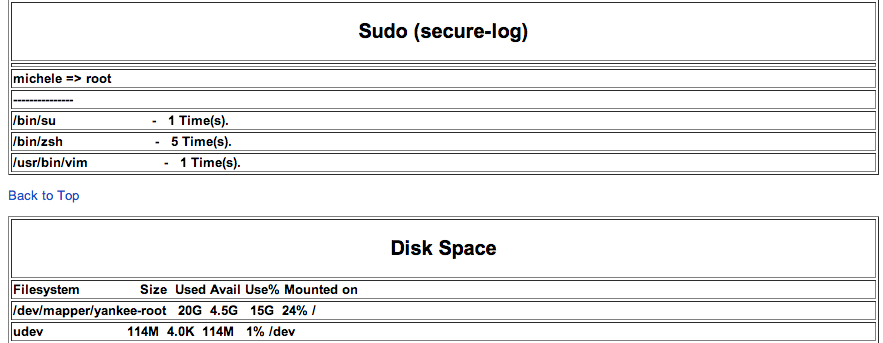
    Ecco l’esempio di una mail ricevuta da logwatch:

    logwatch1

    logwatch2


    Come potete vedere ci sono informazioni molto interessanti, come:
    * i pacchetti installati/aggiornati tramite dpkg
    * gli accessi tramite ssh
    * gli utilizzatori di sudo
    * lo spazio disco utilizzato
    e altre informazioni sicuramente utili sullo stato della macchina in questione.

    logwatch è entrato nella dotazione software standard che installo su tutte le macchine Linux che amministro.

  • sshuttle: creiamo una VPN (via transparent proxy) con SSH

    In passato vi ho spiegato come creare un tunnel SSH per poter “tunnelizzare” il traffico Internet usando da tramite un server che esponeva il demone sshd. La scomodità di questa soluzione risiede nell’ultimo passo: dobbiamo impostare un tunnel SOCKS per ogni programma di cui vogliamo tunnelizzare il traffico. Ok, questo può non essere una scomodità vera e propria, tuttavia: per esempio, vogliamo tunnelizzare solo il traffico del browser [pensiamo di trovarci in una rete pubblica], mentre il traffico SSH [già cifrato] non ha bisogno di essere tunnelizzato.

    Oggi facciamo un passo oltre: vogliamo sfruttare la connessione SSH che abbiamo per tunnelizzare  tutto il traffico attraverso SSH. Questo è equivalente a creare una VPN con il server remoto, ma l’unica differenza importante è che non si creano interfacce di rete aggiuntive!

    Di conseguenza, l’host locale (che chiamiamo client) instaurerà una connessione SSH verso il server che si assumerà la responsabilità di instaurare la connessione verso gli altri host e di fare da “passacarte” verso il client. La configurazione è molto utile nel caso in cui il client si trovi ad utilizzare una rete pubblica non sicura (pensiamo ad esempio a Starbucks) ma allo stesso tempo voglia che tutto il traffico sia cifrato per evitare problemi di sniffing.

    Il software che ci permette di costruire la VPN (vi ricordo che non è a tutti gli effetti una VPN, anche se ne si hanno tutti i benefici) è sshuttle, disponibile per Linux e OSX.

    Una volta installato solo sul client (lo trovate nei repo di Ubuntu e in homebrew), vi consiglio di configurarlo per fare il forward di tutto il traffico (comprese le richieste DNS) nel seguente modo:

    ./sshuttle --dns -vvr username@sshserver 0/0

    [Nota: 0/0 è uno shortcut per 0.0.0.0 – se volete modificarlo per fare selective routing verso il tunnel di una particolare subnet, sapete cosa dovete modificare ;)]

    Per i più curiosi, ecco una piccola spiegazione di cosa c’è under the hood di sshuttle.

  • Tutte le novità di Java 7

    A metà 2011 è stata rilasciata la versione 7 di Java [nickname Dolphin].
    Due sono le grandi novità di questo rilascio:

    • Java è ora marchiata Oracle (che ha acquisito Sun)
    • La reference implementation è ora OpenJDK (l’implementazione open-source di Java), mentre per le passate versioni rimane HotSpot, la versione di Sun Oracle.

    Le novità più interessanti, dal punto di vista delle API, sono:

    • Una (nuova) versione delle API NIO 2 per la gestione e la navigazione del file-system (come ad esempio: Path, Files)
    • Supporto al multiprocessing (ForkJoinTask / RecursiveTask)
    • La possibilità di usare instanze di String come argomento di switch:
      “`
      switch (s) {
      case "foo": break;
      case "bar": break;
      case "foobar": System.out.println("it's foobar!");
      }
      “`
    • Catturare diversi tipi di Exception con una sola catch [separando le Exception con un ‘|’]:
      “`
      try {
      FileInputStream fi = new FileInputStream("foo.txt");
      }
      catch(FileNotFoundException | IoException e) {
      log.error("error: not found or I/O Exception");
      }
      “`
    • try-with-resource [Automatic Resource Management]: dentro ai blocchi try/catch/finally si rimanda la chiusura degli stream/connessioni al finally. Grazie a try-with-resource è la stessa JVM che si occupa di fare ordine con le risorse utilizzate al termine del blocco.
      “`
      try (FileOutputStream fos = new FileOutputStream(f)) {
      fos.write(buf, 0, len);
      }
      catch (Exception e) {
      log.error(e);
      }
      “`
    • Diamond operator (solo sintassi, evitiamo la ripetizione della classe usando i Generics):
      “`
      List<String> foobar = new ArrayList<>();
      “`
    • Leggibilità dei valori numerici (specifichiamo un separatore ‘_’):
      “`
      long accountNumber = 1234_5678_9012L;
      “`
    • JDBC 4.1 (Annotazioni `@Select` e `@Update` per definire le query, `DataSet` sostituisce ResultSet)
  • Convertire una macchina fisica in una virtuale: VMware vCenter Converter

    Ho recentemente convertito due macchine fisiche Windows in macchine virtuali (per questioni di manutenibilità) con un tool gratuito messo a disposizione da VMware: VMware vCenter Converter.

    Una volta installato si occupa di fare un’immagine virtuale di tutto il contenuto dell’hard disk (comprese eventuali partizioni), creando una macchina virtuale (compatibile con VMware e con Oracle VirtualBox).

    Non ho ancora provato a virtualizzare una macchina Linux (mi sono affidato a clonezilla), ma VMware supporta anche la conversione di Linux da fisico a virtuale.