Author: Michele Bologna

  • Spotify puzzles: round two

    Some months ago, I began challenging myself with Spotify puzzles: at that time I was dealing with an easy problem; now, the difficulty has increased. The round two consists in the typical “Selection problem“: given an array of values, find the max (or min) k values. I decided to still use Python and to use its heapq module to store values in a binary max-heap data structure, and then remove exactly k values from the top of the heap. This approach will guarantee that the total time complexity of the algorithm will be O(n log k).

    The heapq module implements a min-heap data structure (as happens in Java). In order to use a max-heap, I specified a custom comparator for the Song class I wrote (remember: Python3 deprecates __cmp__ method, so I resort to implement __lt__ and __eq__ methods to specify a custom comparison algorithm):

    # If two songs have the same quality, give precedence to the one
    # appearing first on the album (presumably there was a reason for the
    # producers to put that song before the other).
    def __lt__(self, other):
        if self.quality == other.quality:
            return self.index < other.index
        else:
            # heapq is a min-heap, so a song is lt than another if it has
            # a greater quality (inverted!)
            return self.quality > other.quality
    
    def __eq__(self, other):
        return self.quality == other.quality and \
               self.index == other.index
    

    As always, I used py.test to automatically test my solution against test-cases.

    pytest

    In the end, the honorable (automated) judge confirms the solution:

    spotify_zipfsong

    Code has been published on GitHub.

  • Viaggiatreno Ruby gem: version 1.0.5

    On the background of all my activities, I continued the developing of viaggiatreno, a Ruby gem to parse Italian railway real-time system information of the status of the various trains: location, delay, expected and real arrival time. Yesterday I released the version 1.0.5 of this gem, which improves the overall code quality of this gem (0 rubocops violations!):

    viaggiatreno gem source code is hosted on GitHub.

    Simple usage of this gem has been included in the README.

    Another interesting fact that I dealt while writing continuous integration test (with Travis) in the development of this gem: as it fetches and parses information from Internet URLs, one way of writing RSpec tests is to “mock” the remote web part.

    Using vcr gem, I mocked the response of the remote web server in order to write static test-cases (since the informations on train change over time, subsequent web requests did not fetch the same results).

  • Packaging software for Debian/Ubuntu: eclipse

    Eclipse is my (Java, Python, Ruby, XML, <insert any other text format here) editor of choice, and it has been for many years. One thing that bothers me is that Eclipse package is outdated in Ubuntu: so, instead of using apt, I should resort to download/unpack/copy/create links to install it. These days are finished, though.

    In fact, I have been introduced to Debian packaging and I contributed to the Debian package of the latest version of the Eclipse IDE (4.5.1). EDIT: Repository has been removed as obsolete.

    This package is really simple (and in fact I used it to learn the packaging process for Debian/Ubuntu). How did I learn it? Recommended reading: How to package for Debian.

    In the following days I will try to publish a PPA with the built package. In the meanwhile, if you want to try to build the package on your own, just: 1. git clone -b eclipse_4.5.1
    2. cd eclipse-ide-java
    3. cd eclipse-ide-java_4.5.1
    4. debuild -i -us -uc -b
    5. cd ..

    Now you have a *.deb package waiting for you to be installed (via dpkg -i): upon installing it will fetch (via wget) the latest version of Eclipse, unpack, copy and create links.

  • Workaround for OpenVPN PAM authentication broken on Ubuntu 15.10

    After updating to Ubuntu 15.10 a box with an OpenVPN termination I am using to browse when I travel and use insecure networks, my VPN tunnel stops working. I am using, in this particular box, an OpenVPN server that relies on PAM plugin for authentication (and 2-step verification).

    Given the fact that I keep all my configuration files under etckeeper, the problem determination began with some git log under my /etc directory, both on server and client. Obviously, no configuration has changed during the upgrade.

    The problem has to be somewhere. I had a look at the logs:

    12:47:46 ovpn-3-rtr.bgo ovpn-server[982]: x.x.8.234:64484 TLS: Initial packet from [AF_INET]x.x.8.234:64484
    12:47:48 ovpn-3-rtr.bgo ovpn-server[982]: x.x.8.234:64484 PLUGIN_CALL: POST /usr/lib/openvpn/openvpn-plugin-auth-pam.so/PLUGIN_AUTH_USER_PASS_VERIFY status=1 
    00:47:48 ovpn-3-rtr.bgo ovpn-server[982]: x.x.8.234:64484 PLUGIN_CALL: plugin function PLUGIN_AUTH_USER_PASS_VERIFY failed with status 1: /usr/lib/openvpn/openvpn-plugin-auth-pam.so
    12:47:48 ovpn-3-rtr.bgo ovpn-server[982]: x.x.8.234:64484 TLS Auth Error: Auth Username/Password verification failed for peer
    12:47:50 ovpn-3-rtr.bgo ovpn-server[982]: x.x.8.234:64484 SENT CONTROL [UNDEF]: 'AUTH_FAILED' (status=1)
    12:47:50 ovpn-3-rtr.bgo ovpn-server[982]: x.x.8.234:64484 Connection reset, restarting [0]
    12:47:50 ovpn-3-rtr.bgo ovpn-server[982]: x.x.8.234:64484 SIGUSR1[soft,connection-reset] received, client-instance restarting
    

    (obviously I was providing the correct username and password).

    Ok, the problem was occurring with PAM plugin. After some research and trial, I came across Bug #1511524 “OpenVPN PAM authentication broken on 15.10 Server” : Bugs : openvpn package : Ubuntu: that is caused by a bug in Ubuntu package of OpenVPN (and specifically in OpenVPN systemd unit file).

    As described in the bug, you have three ways to restore a normal situation. Either:

    • stop the daemon and launch OpenVPN daemon
    • modify /lib/systemd/system/openvpn@.service and add CAP_AUDIT_WRITE to CapabilityBoundingSet property
    • or you can just wait while they ship a package with a correct systemd unit file.

    Don’t forget to systemctl restart openvpn to apply changes and use your VPN:

    13:03:49 ovpn-3-rtr.bgo ovpn-server[5186]: x.x.10.176:61423 PLUGIN_CALL: POST /usr/lib/openvpn/openvpn-plugin-auth-pam.so/PLUGIN_AUTH_USER_PASS_VERIFY status=0 
    13:03:49 ovpn-3-rtr.bgo ovpn-server[5186]: x.x.10.176:61423 TLS: Username/Password authentication succeeded for username 'x'
    
  • Dan Pink: The puzzle of motivation

    I normally watch a lot of videos (and listen to a lot of podcasts) from TED, a set of conferences about Technology, Entertainment and Design.

    Today I had a chance to watch a very talented speaker, Dan Pink, who delivered a mind-blowing presentation about motivation, business and science.

    This is a presentation from 2009: if you haven’t already watched it, I strongly advise to set apart 18 minutes of your time and watch it.

    Happy watching!

  • Getting started with cloud-init and CoreOS

    Lately I’ve been experimenting with CoreOS, a Linux distribution that enforces containerization (I made some experiments with Docker and I’d say that this area is fun!). CoreOS layer of containerization was based Docker, but now that they moved to Rocket. Not only Rocket, though: CoreOS brings some curious innovations to lightweight Linux distributions like clusterization with fleet and service discovery with etcd.

    Since I had to do some tweaks to run CoreOS in a virtual machine (VMware Fusion on OSX is the Type 2 hypervisor I used), I decided to write this post to better illustrate how should you customize CoreOS for the first run.

    First of all, download CoreOS! After importing it in VMware, the tricky part comes in. CoreOS is heavily focused on automation, so you have either two choices to login into your newly created CoreOS machine:

    • boot CoreOS kernel with coreos.autologin parameter active (debug)
    • prepare a cloud-init package that contains your customization. In this case, your ssh pubkey fingerprint. (preferred)

    Let’s see both ways.

    Boot CoreOS with coreos.autologin

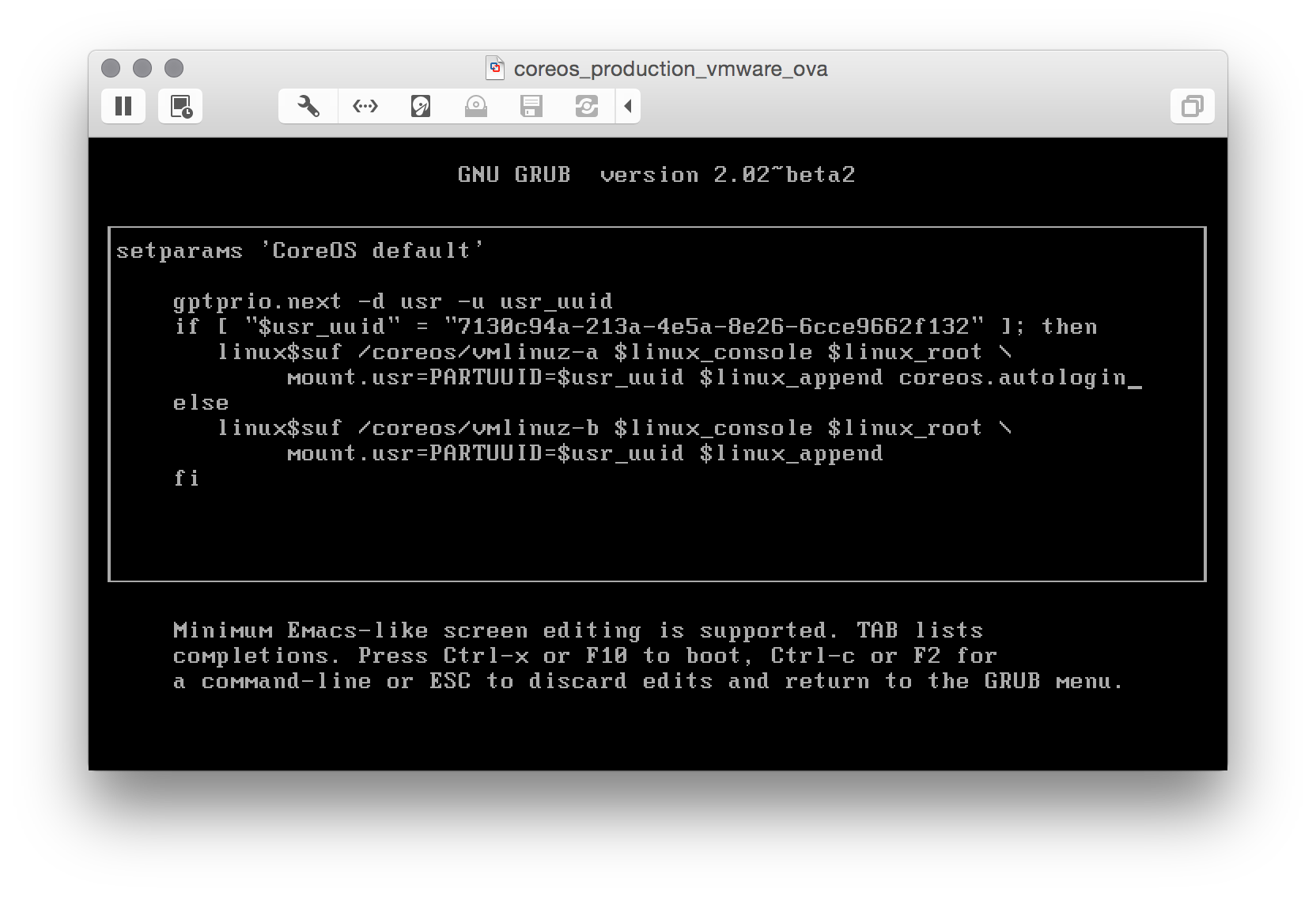
    When you see the GRUB menu, edit the current entry and add coreos.autologin

    coreos.autologin

    and you are good to go.

    Note: that with this method only interactive local logins are allowed.

    Prepare a cloud-init package

    This one seems difficult, but it’s not! First of all: cloud-init is a set of scripts that customize a Linux distribution during boot: you can add users, groups, packages and execute commands before the Linux box comes up. CoreOS ships with cloud-init by default, so we only have to:

    1. Write a simple config file (cloud-config)
    2. Package the config into a config-drive (basically, an .iso file)
    3. Mount that iso as a drive for our virtual machine and reboot CoreOS to make your customizations effective

    Write a simple config file

    In our config we will:

    1. Add our ssh pubkey (be sure to have one, or generate it right now)
    2. Set the hostname (who wants a generic hostname anyway?)

    The cloud-config is straightforward: a YAML file where only the first line is equal for everyone:

    # cloud-config 
    ssh_authorized_keys: 
        - "ssh-rsa ... michele@fortknox" 
    hostname: "coreos-test"
    

    Remember to customize it with your pubkey fingerprint and the hostname you want and save it as user_data.

    Package cloud-config into a config-drive

    Now that we have a cloud-config file, we have to package it as a config-drive and make it available as a drive for CoreOS. Since I needed to repeat this process a couple of times, I decided to automate it and I wrote a simple script: configdrive_creator. Be sure to read the instruction: you prepare the config, put it in the same directory of the script, launch the script and the iso is created.

    Mount the iso file as a drive for CoreOS

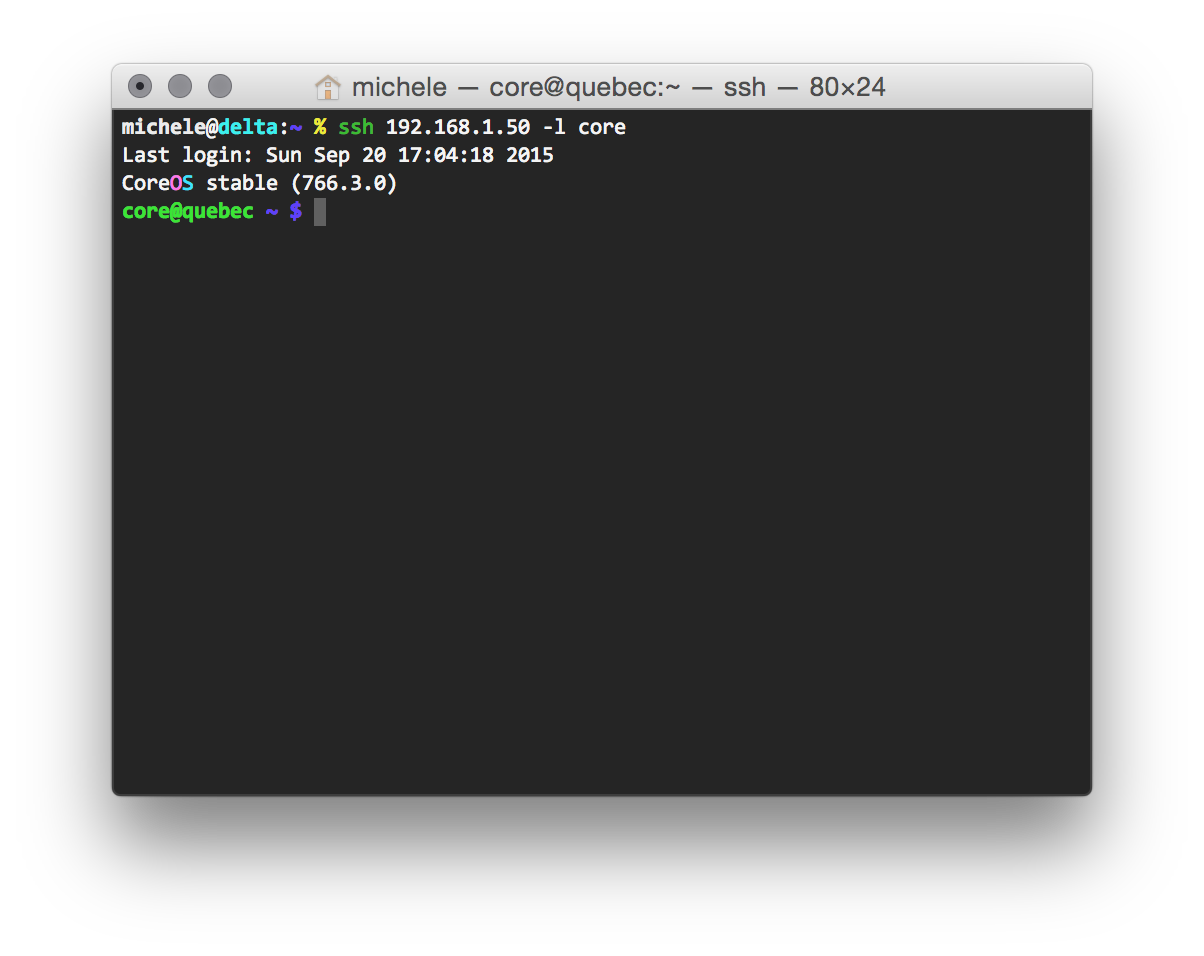
    I am sure you are aware to do it on your own! After rebooting your CoreOS VM, you can finally ssh into it:

    coreos_ssh

    Happy hacking!

  • Fun with Python powered telnetd honeypot

    Reason: hardening, serendipity and curiosity

    As you already know, in the past weeks I hardened all of my boxes: while doing it, I flushed all iptables/ipfw rules, changed the default policy to DROP and take it from there to enable every rule as soon as I need it. Whilst Ubuntu uses ufw as a fronted for iptables, Fedora uses firewalld.

    After setting up UFW, by looking at journalctl I can see all rejected connections, like:

    Sep 03 11:54:16 -- kernel: [UFW BLOCK] IN=eth0 OUT= MAC=XX SRC=XX DST=XX LEN=60 TOS=0x00 PREC=0x00 TTL=51 ID=24286 DF PROTO=TCP SPT=36864 DPT=23 WINDOW=5808 RES=0x00 SYN URGP=0
    

    As we all know, Internet is a wild place. In this particular case, someone was trying to connect to my box on port 23/tcp (telnetd, is still there someone who uses it?).

    My curiosity begin to increase. Let’s have a look on which ports I rejected most of the connections:

    /var/log # zgrep -ho "DPT=\w*" syslog* | cut -d "=" -f 2 | sort | uniq -c | sort -nr | head -n 10
        # no. of attempts | port
       1009 23
        969 3128
        330 22
        248 8080
        168 80
        158 5060
        151 3389
        111 1825
         94 1433
         77 123
    

    (as I am running an httpd-ssl server on this host, connections to 443/tcp port are not showed).

    Idea

    Ok, so mostly of the wild connectors out there try to telnetd to my host (and all other hosts on the Internet). Again, my curiosity prevails: how about a fake telnetd server written in Python with twisted? As I always wanted to have a look with twisted, seems a good idea. The main idea here is to write a simple telnetd server that:

    • shows the root prompt and waits for commands
    • answers with fake answers to some UNIX commands (like uname and id)
    • answers to all other commands with Command not found or with nothing (like that the command was accepted). The choice between answering in the former way rather than the latter is random
    • record everything that is written by the attacker

    This is a very simple and diminished concept of an Honeypot and leads to the code I published the code on GitHub under telnetd_honeypot.

    Just for the sake of increased security, I did not want to run this program as root (not because I do not trust it, just because it’s a bad practice!). But we need to run it as root, because we need superuser powers to open a listening socket on all ports <1024, especially 23/tcp.

    Sounds like a dead end? Not at all. Meet rinetd. We set up a bounce redirection from 23/tcp to the port on which our basic honeypot is listening (8023/tcp), launched by an unprivileged user (again: for security. Feel free to spin up a Docker container just to launch the honeypot).

    Demo

    % python telnetd.py &
    [1] 15171
    % telnet localhost 8023
    Trying 127.0.0.1...
    Connected to localhost.
    Escape character is '^]'.
    / # uname -a
    Linux f001 3.13.3-7-high-octane-fueled #3000-LPG SMPx4 Fri Jun 31 25:24:23 UTC 2200 x86_64 x64_86 x13_37 GNU/Linux
    / # id
    uid=0(root) gid=0(root) groups=0(root)
    / # ls
    / # ps auxw
    bash: ps: command not found

    Results

    The results are quite fascinating. By analizing our file produced by our honeypot runned just for 3 days we can see the most typed commands on the other side of the client:

    ~ % cut -d " " -f 6- telnetd_honeypot.log | sort | uniq -c | sort -nr | head -n 3  
    921 sh
    918 /bin/busybox ZORRO
    879 root
    

    We might notice that most of the lines are common passwords guessing, while the busybox invocation with the parameter ZORRO is mysterious: even Googling, I have no clues about it. Sounds like a custom firmware? There are also multiple attempt to inject a shellcode (which I am not publishing for obvious reasons).

    There are also funny entries:

    08/20/2015 12:43:10 AM INFO: 79.x.x.x knock knock neo
    

    Anyone else has seen Neo?

    The results are pretty interesting and deserve a further investigation. Upon running just for 3 days, I gather enough results to satisfy my curiosity. The honeypot described here is just a starting point, hoping to gather more contributors to this fascinating problem. With the addition of Docker containers, the future possibilities are quite infinite. Happy investigating!


  • Convert Java to EXE – Why, When, When Not and How

    Today I come across this great article on the various possibilities we have, as developers, to package a Java application in an executable format for all Windows users out there. I have always used JSmooth with success, but it is nice to discover there are more alternatives (and some of them are OSS too!).

  • Playing with Docker: tips and tricks to write effective Dockerfiles

    Recently I have been playing with Docker containers, and I am sure you already know what Docker is. In this post I will describe what I have learnt while using Docker containers and preparing Dockerfiles.

    What is Docker?

    In a few words: Docker is a software to manage and run Linux containers in which you can deploy an application using Dockerfiles. The main concept here is divide-et-impera concept: a Docker container is just like a virtual machine, except that is very lightweight (it is only a container, so it is not virtualizing an entire machine).

    How do I run a Docker container?

    1. Install Docker
    2. docker run container command (e.g. docker run -ti fedora bash)

    Docker will fetch the container (from DockerHub, a central repo for Docker containers) and run the specified command.

    What is a Dockerfile?

    A Dockerfile is a set of instructions to prepare a Docker container on your own. It basically declare a base image (like a Linux distribution: for example Fedora, Ubuntu, etc.) and apply modifications on that container (fetch the software you want to run on container, compile it, run, etc). There is a basic set of instruction for Dockerfiles. For all Vagrant users: that’s right, a Dockerfile is just like a Vagrantfile: it states the steps to prepare a machine (except that in this case we are preparing a container).

    How do I use a Dockerfile?

    1. Install Docker
    2. Download a Dockerfile
    3. (if applicable): edit any files that will be copied from host to container. This is useful for configuration files if you want to customize your Dockerized application
    4. docker build -t containername .

    Docker will reproduce the steps to create the container, using the instructions found on the Dockerfile. After it has finished, you can run the Docker container as specified above.

    Docker: from theory to practice

    Ok, theory aside. I decided to create a Dockerfile for two applications because:

    • the application was not available from the official repos (e.g. alice)
    • the version in the official repos is outdated (e.g. bitlbee)

    Basically, we will declare two Docker containers in which we fetch our software, customize to our needs and run it inside the container. Both of them will declare a service, and the container will serve as a server for the application (alice/http and bitlbee/irc).

    bitlbee Dockerfile

    In this case we are using my preferred base image which is Fedora, we customize it to be able to fetch and compile the source code of bitlbee and then proceed to compile it. In this Dockerfile we also ADD two configuration files from the host to the Dockerfile. Again, we launch the service as daemon user and expose the 6667/tcp port. The final size of the Docker container image is 359MB.

    To use it, connect your IRC client to localhost:6667 (remember to map the correct port, see below).

    bitlbee Dockerfile on GitHub.

    Tips and caveats

    Docker

    First of all, some tips I learnt:

    • When running a container, it is always best to launch it with a name (it easier to reference the container afterwards): docker run --name bitlbee_container mbologna/docker/bitlbee
    • If you want to detach a container, supply -d option when running
    • You can inspect a running container by attaching to it: docker exec -ti bitlbee bash
    • Remember to clean up docker images and docker containers: show them with docker images and docker ps -a. Remove them with docker rmi and docker rm
    • If you are running Docker containers as a service (like in this example), you should remember to set the option --restart=always to make sure that your Docker container is started at boot and whenever it exits abnormally

    Everything on the docker container makes it apart from the host machine under all points of view (network, fs, etc.). Thus:

    • When using Docker containers (in particular you are running a service inside a Docker container), you can access your container ports by mapping the ports on the containers to ports on your host using the -p option: docker run -p 16667:6667 mbologna/docker-bitlbee (container maps 16667 port on the host machine to 6667 port on the container, so it can be accessed at 16667/tcp on the host machine)
    • When a container is restarted, everything on the container is reset (speaking of file-system too). In order to write non-volatile files, you should supply -v option that declares a volume; as with ports we have seen above, you specify first the directory on host and then the corresponding directory on the container. This is useful for config files (you want to keep them, right?): docker run -v /home/mbologna/docker-bitlee/var/lib/bitlbee:/var/lib/bitlbee mbologna/docker-bitlbee

    Dockerfiles

    • If you define a VOLUME in the Dockerfile:
      • if user is launching Docker container without specifying a volume, VOLUME directory will typically resides under /var/lib/docker/volumes (you can discover it using docker inspect <container>)
      • otherwise, VOLUME directory will resides on the specified directory using -v option.

      This exposes an issue of permissions on the VOLUME directory. I basically solved it by chowning twice the volume directory, otherwise either one of the two cases described above wouldn’t have the correct permissions: chown -R daemon:daemon /var/lib/bitlbee* # dup: otherwise it won't be chown'ed when using volumes
      VOLUME ["/var/lib/bitlbee"]
      chown -R daemon:daemon /var/lib/bitlbee* # dup: otherwise it won't be chown'ed when using volumes

    • When a final user pulls a container, it basically downloads your container from DockerHub. That’s why we want to minimize Docker container size. How can we do that when preparing a Dockerfile?
      • Every command you launch on a Dockerfile creates a new (intermediate) Docker container (the final result will be the application of every instruction on top of the instruction above it!) => minimize steps and group commands under RUN commands using &&. E.g.:

        RUN touch /var/run/bitlbee.pid && \
        chown daemon:daemon /var/run/bitlbee.pid && \
        chown -R daemon:daemon /usr/local/etc/* && \
        chown -R daemon:daemon /var/lib/bitlbee*

      • After you compiled/installed your software, be sure to remove it if unnecessary to clean up space: apt-get clean && \
        apt-get autoremove -y --purge make \
        rm -fr /var/lib/apt/lists/*

    • Every command you launch on the Docker container is run as root: be sure, before launching your software, to launch it with as minimal privileges as possible Principle of least privilege. For example, I launch alice and bitlbee daemons with the daemon user: USER daemon
      EXPOSE 8080
      CMD ["/home/alice/alice/bin/alice", "-a", "0.0.0.0"]

    Contributing

    You can pull my Docker containers on DockerHub:

    You can browse my Dockerfiles on GitHub:

    Future work

    Two interesting concepts I came across during my research and I will investigate in the future:

    • CoreOS, a Linux distribution in which every application is launched on a separate Docker container
    • Kubernetes, an orchestration layer for Docker containers
  • Hardening services: let’s review our config files

    It’s hardening Sunday here: I reviewed the config files of my main daemons (nginx, openvpn, tinc, sshd) with the help of two resources that I want to share with you, fellow readers.

    First of all, a guide dedicated exclusively to hardening ssh: from using public key authentication only (I strictly encourage it!) to the selection of which ciphers ssh should use (there is theory behind, so read it!).

    The second guide, is a guide for hardening all services, from web servers to VPN concentrators (divided by vendor): a worth reading guide. Every option is very well detailed and discussed, for all you nitpickers like me.

    So, take aside 2 hours, read the theory, then adopt the changes you think would benefit your setup. Happy hardening!

    Update: if you are using OSX, do not use default ssh toolset that ships with OSX: it is not updated and it does not have ssh-copy-id to distribute your public key among your ssh servers. More that that, OSX default ssh does not support ecdsa which is the main crypto algorithm that the linked guides are using.
    Solution: brew install homebrew/dupes/openssh and adjust your PATH accordingly.